
USB-C overview
With a USB-C connection, you can charge your Windows 11 PC, and you can also connect to other USB Type-C devices such as mobile phones, docking stations, display adapters, and other devices that have a USB-C port.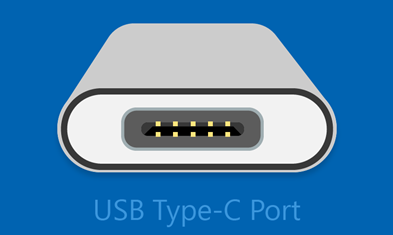
Unfortunately, some combinations of hardware and software may cause problems. If this happens, you may get a notification that there’s something wrong with the USB-C connection. We’ve provided some tips below to help you fix things. And if you want to change whether you see notifications about USB issues, here's how:
-
Select Search , type usb and select USB settings from the list of results.
Open USB settings -
Turn Connection notifications on or off.
Note: If you're having trouble downloading photos, see Import photos and videos from phone to PC.
Here are some USB-C notifications you might receive if there’s a problem:
USB4 device functionality might be limited
Make sure the USB4 device you're connecting to is supported by your PC.
|
Try these solutions |
Possible causes |
|---|---|
|
|
USB device not recognized
The last USB device you connected to this computer malfunctioned, and Windows does not recognize it.
|
Try these solutions |
Possible cause |
|---|---|
Note: This applies to all the error codes shown in Device Manager except error Code 28 (drivers for the device aren’t installed). |
The USB device that you connected to reported a problem, or there’s a problem with the device driver. |
To find the error code on a Windows 11 PC
-
Select the Start button, then type device manager and select Device Manager from the list of results.
-
In Device Manager, find the device. It should be marked with a yellow exclamation point symbol.
-
Choose the device, press and hold (or right-click) it, and then select Properties. The error code is displayed under Device status.
Slow charger
To speed up charging, use the charger and cable that came with your device.
|
Try these solutions |
Possible causes |
|---|---|
|
Notes:
|
PC isn't charging
To speed up charging, use the charger and cable that came with your device.
|
Try these solutions |
Possible causes |
|---|---|
|
Notes:
|
USB device functionality might be limited
Make sure the device you're connecting to is supported by your PC.
- OR -
Thunderbolt device functionality might be limited
Make sure the Thunderbolt device you're connecting to is supported by your PC.
|
Try these solutions |
Possible causes |
|---|---|
|
Notes:
|
Display connection might be limited
Make sure the DisplayPort device you're connecting to is supported by your PC .
- OR -
MHL device functionality might be limited
Make sure the MHL device you're connecting to is supported by your PC.
|
Try these solutions |
Possible causes |
|---|---|
|
Notes: USB Type-C has a new feature called Alternate Modes which allows you to use non-USB connections with the USB-C cable and connection. There's no setting to turn on—your device automatically uses the appropriate mode if it's supported. Here are the display Alternate Modes that your cable may support:
|
Use different USB port
The USB device might have limited functionality when connected to this port. Plug the USB device into a different USB port on your PC.
|
Try these solutions |
Possible causes |
|---|---|
|
|
USB device might need more power
Your PC might not provide enough power to the USB device. Please connect your device to external power, or try using a different PC.
|
Try these solutions |
Possible causes |
|---|---|
|
|
Unsupported USB-C Audio Adapter
Connect a USB-C digital audio adapter instead.
|
Try this solution |
Possible cause |
|---|---|
|
If you have a USB-C analog audio adapter connected to your PC, unplug it, then connect a USB-C digital audio adapter instead. |
Your PC doesn't support the audio adapter you connected to. Note: There are two types of USB-C audio adapters: analog and digital. Most PCs only support USB-C digital audio adapters, which contain hardware that converts digital audio data from your PC to an analog signal that your headphones or speakers can play. USB-C digital audio adapters are often more expensive than analog audio adapters. |
USB-C overview
With a USB-C connection, you can charge your Windows 10 PC, and you can also connect to other USB Type-C devices such as mobile phones, docking stations, display adapters, and other devices that have a USB-C port.
Unfortunately, some combinations of hardware and software may cause problems. If this happens, you may get a notification that there’s something wrong with the USB-C connection. We’ve provided some tips below to help you fix things. And if you want to change whether you see notifications about USB issues, here's how:
-
Select the Start button, then select Settings > Devices > USB.
Open USB settings -
Select or clear the Notify me if there are issues connecting to USB devices box.
Note: If you're having trouble downloading photos, see Import photos and videos from phone to PC.
Here are some USB-C notifications you might receive if there’s a problem:
You might be able to fix your USB device
Your USB device ran into a problem. Follow these steps to try to fix it. (Error code ____)
|
Try these solutions |
Possible cause |
|---|---|
Note: This applies to all the error codes shown in Device Manager except error Code 28 (drivers for the device aren’t installed). |
The USB device that you connected to reported a problem, or there’s a problem with the device driver. |
-
Select the Start button, then in the search box on the taskbar, type device manager and select Device Manager from the list of results.
-
In Device Manager, find the device. It should be marked with a yellow exclamation point symbol.
-
Choose the device, press and hold (or right-click) it, and then select Properties. The error code is displayed under Device status.
-
Swipe down from the top of your screen to open action center. The notification appears in action center with the error code listed there.
Slow USB charger connected
To speed up charging, use the charger and cable that came with your device.
|
Try these solutions |
Possible causes |
|---|---|
|
Notes:
|
PC (or phone) isn't charging
To speed up charging, use the charger and cable that came with your device.
|
Try these solutions |
Possible causes |
|---|---|
|
Notes:
|
The USB device might not work
Try connecting it to a PC.
|
Try these solutions |
Possible cause |
|---|---|
|
There's a driver in the device you connected to that isn't supported in the version of Windows 10 Mobile your phone is running. For information about the supported devices, see Universal Serial Bus (USB). |
USB or Thunderbolt device functionality might be limited
Make sure the device you're connecting to is supported and that you're using the right cable.
|
Try these solutions |
Possible causes |
|---|---|
|
Notes:
|
Display connection might be limited
DisplayPort/MHL connection might not work. Try using a different cable.
|
Try these solutions |
Possible causes |
|---|---|
|
Notes: USB Type-C has a new feature called Alternate Modes which allows you to use non-USB connections with the USB-C cable and connection. There's no setting to turn on—your device automatically uses the appropriate mode if it's supported. Here are the display Alternate Modes that your cable may support:
|
These two PCs (mobile devices) can't communicate
Try connecting one of them to a mobile device (PC).
|
Try this solution |
Possible causes |
|---|---|
|
Connect your Windows 10 PC to a Windows 10 phone instead. |
These types of connections aren’t currently supported:
|
Use different USB port
This USB port doesn't support DisplayPort or Thunderbolt or MHL. Plug the USB device into a different USB port on your PC.
- OR -
The USB device might have limited functionality when connected to this port. Plug the USB device into a different USB port on your PC.
|
Try these solutions |
Possible causes |
|---|---|
|
|
USB device might not be working properly
Your PC (or phone) might not provide enough power to the USB device. Plug a power adapter into your USB device, or try to use a different PC (or phone).
|
Try these solutions |
Possible causes |
|---|---|
|
|
Unsupported USB audio adapter
Connect a USB-C digital audio adapter instead.
|
Try this solution |
Possible cause |
|---|---|
|
If you have a USB-C analog audio adapter connected to your PC, unplug it, then connect a USB-C digital audio adapter instead. |
Your PC doesn't support the audio adapter you connected to. Note: There are two types of USB-C audio adapters: analog and digital. Most PCs only support USB-C digital audio adapters, which contain hardware that converts digital audio data from your PC to an analog signal that your headphones or speakers can play. USB-C digital audio adapters are often more expensive than analog audio adapters. |









