
If you want to make your screen easier to see, Windows offers a lot of features and options that can help you. Here are a few suggestions.
Adjust size and color
-
To adjust the size of text, apps, and other items, select the Start button, then select Settings > Accessibility > Text size. Use the slider next to Text size to make just the text on your screen larger. To scale up everything on your screen, select the Start button, then select Settings > System > Display, and change the Scale drop-down menu under Scale & Layout to a larger percentage.
-
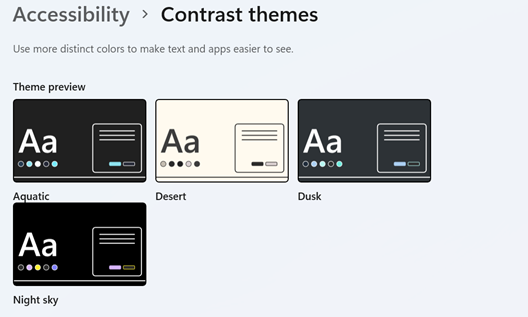
If there's not enough contrast between the elements on your screen, try using a high contrast theme. Select the Start button, then select Settings > Accessibility > Contrast themes, select one of the options in the drop-down menu next to Contrast themes, and select Apply. You can select between Aquatic, Desert, Dusk, and Night sky.
Know where you're pointing
-
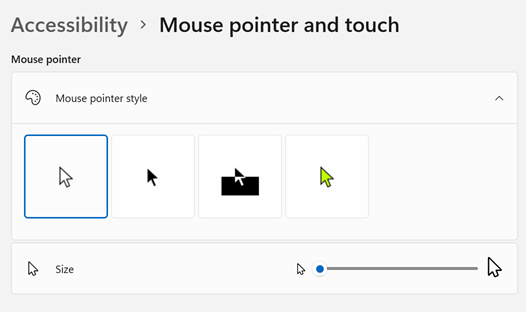
Make your mouse more visible by changing the color and size of the mouse pointer. Select the Start button, then select Settings > Accessibility > Mouse pointer & touch, and choose the options that work best for you.
-
By adding pointer trails you can see where the mouse is moving on the screen. Select the Start button, then select Settings > Bluetooth & devices > Mouse > Additional mouse settings. In the Mouse Properties window, select the Pointer Options tab, and then Display pointer trails.
-
Windows can also show visual feedback when you touch the screen. Select the Start button, then select Settings > Accessibility > Mouse pointer & touch, and then set Touch indicator to On.
Magnify your screen
Magnifier enlarges part or all of your screen so you can see words and images better. To open Magnifier quickly, press the Windows logo key + Plus sign (+). When Magnifier is open, use Windows logo key + Plus sign (+) or Windows logo key + Minus sign (-) to zoom in or out. To close Magnifier, press Windows logo key + Esc.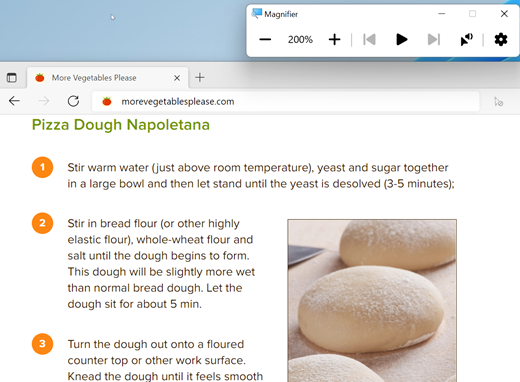
To learn more about Magnifier, see Use Magnifier to see items on the screen.
Apply color filters
Make photos, text, and colors easier to see by applying a color filter to your screen. Color filters change the color palette on the screen and can help you distinguish between things that differ only by color.
To apply color filters, select the Start button, then select Settings > Accessibility > Color filters, set Color filters to On, and choose the options that work best for you.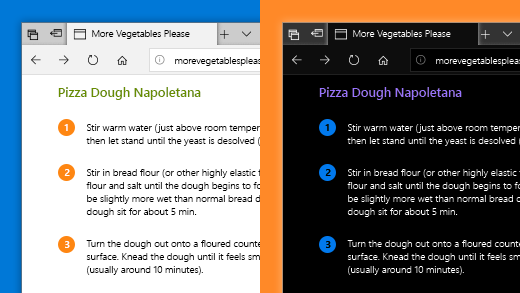
-
To turn on and turn off your color filters quickly, select the Start button, then select Settings > Accessibility > Color filters, and set Keyboard shortcut for color filters to On. Then press the Windows logo key + Ctrl + C to turn them on and off.
To learn more about color filters, read Use color filters in Windows.
Use Narrator to navigate your PC
Narrator is the built-in screen reader in Windows that reads aloud what's on your screen so you can use that information to navigate your PC. To start or stop Narrator, press the Windows logo key + Ctrl + Enter.
For more info on how to use Narrator, check out the Complete guide to Narrator.
Adjust size and color
-
To adjust the size of text, apps, and other items, select the Start button, then select Settings > Ease of Access > Display . Use the slider under Make text bigger to make just the text on your screen larger. Or, select an option from the drop-down menu under Make everything bigger to change the size of everything on your screen.
-
If there's not enough contrast between the elements on your screen, try using a high contrast theme. Select the Start button, then select Settings > Ease of Access > High contrast , and switch on the toggle under Turn on high contrast.

-
To make the apps in your Start menu appear larger, right-click (or tap and hold) the app tile you want to resize, select Resize, and then choose the size that you want.
Know where you're pointing
-
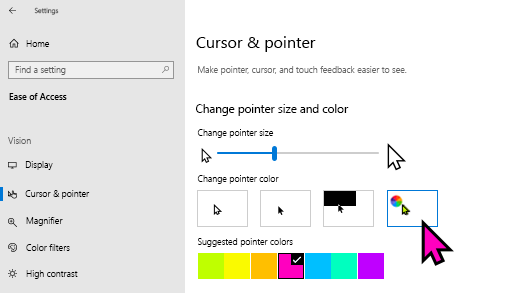
Make your mouse more visible by changing the color and size of the mouse pointer. Select the Start button, then select Settings > Ease of Access > Cursor & pointer , and choose the options that work best for you.
-
By adding pointer trails you can see where the mouse is moving on the screen. Select the Start button, then select Settings > Devices > Mouse > Additional mouse options. In the Mouse Properties window, select the Pointer Options tab, and then Display pointer trails.
-
Windows can also show visual feedback when you touch the screen. Select the Start button, then select Settings > Ease of Access > Cursor & pointer , and then select the toggle under Show visual feedback around the touch points when I touch the screen.
Magnify your screen
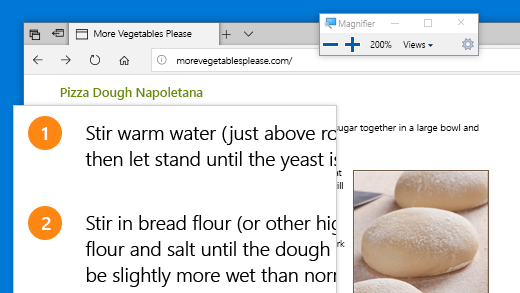
Magnifier enlarges part or all of your screen so you can see words and images better. To open Magnifier quickly, press the Windows logo key + Plus sign (+). When Magnifier is open, use Windows logo key + Plus sign (+) or Windows logo key + Minus sign (-) to zoom in or out. To close Magnifier, press Windows logo key + Esc.
To learn more about Magnifier, see Use Magnifier to see items on the screen.
Apply color filters
Make photos, text, and colors easier to see by applying a color filter to your screen. Color filters change the color palette on the screen and can help you distinguish between things that differ only by color.
To apply color filters, select the Start button, then select Settings > Ease of Access > Color filters , and choose the options that work best for you.
-
To turn on and turn off your color filters quickly, select the Start button, then select Settings > Ease of Access > Color filters , and select Allow the shortcut key to toggle filter on or off. Then press the Windows logo key + Ctrl + C.
To learn more about color filters, read Use color filters in Windows.
Use Narrator to navigate your PC
Narrator is the built-in screen reader in Windows that reads aloud what's on your screen so you can use that information to navigate your PC. To start or stop Narrator, press the Windows logo key + Ctrl + Enter.
For more info on how to use Narrator, check out the Complete guide to Narrator.









